
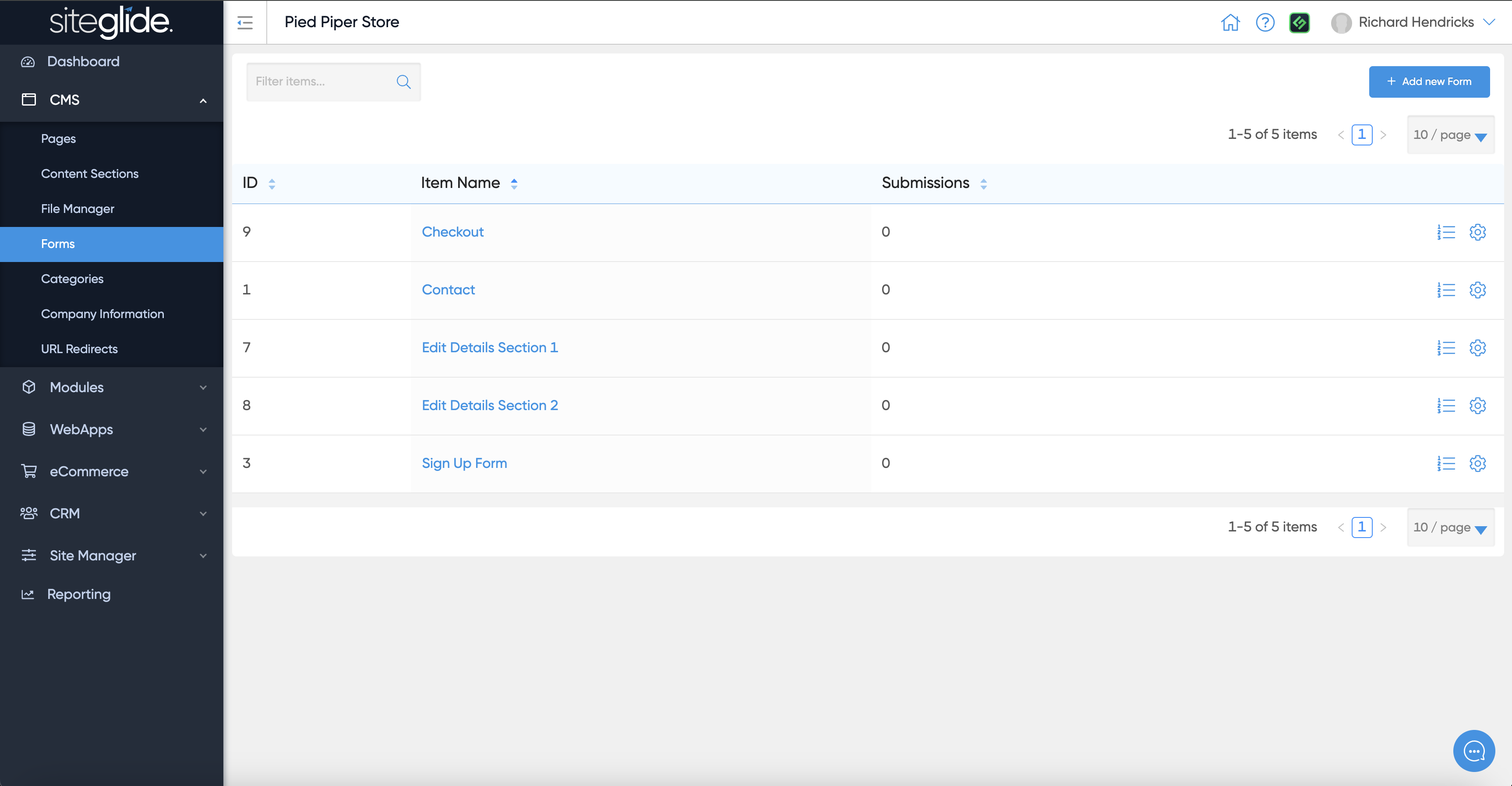
You can find forms under CMS in the main menu. You can edit an existing form or create a new one:
Step 1: Create a Form
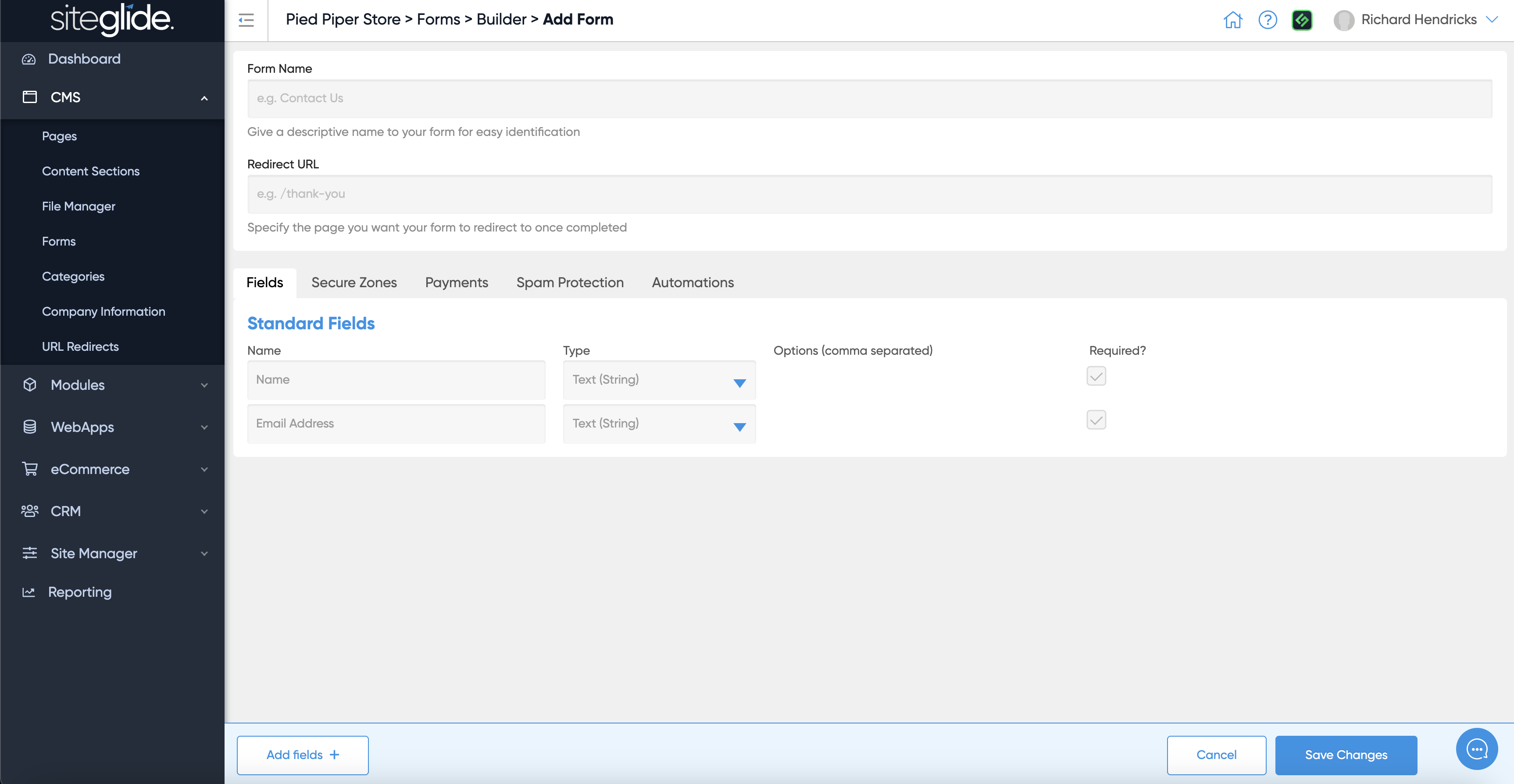
Give the form a Name and choose what page you want visitors to be sent to once they submit. There are also tabs to control the other form features and settings:
Step 2: Edit the Fields
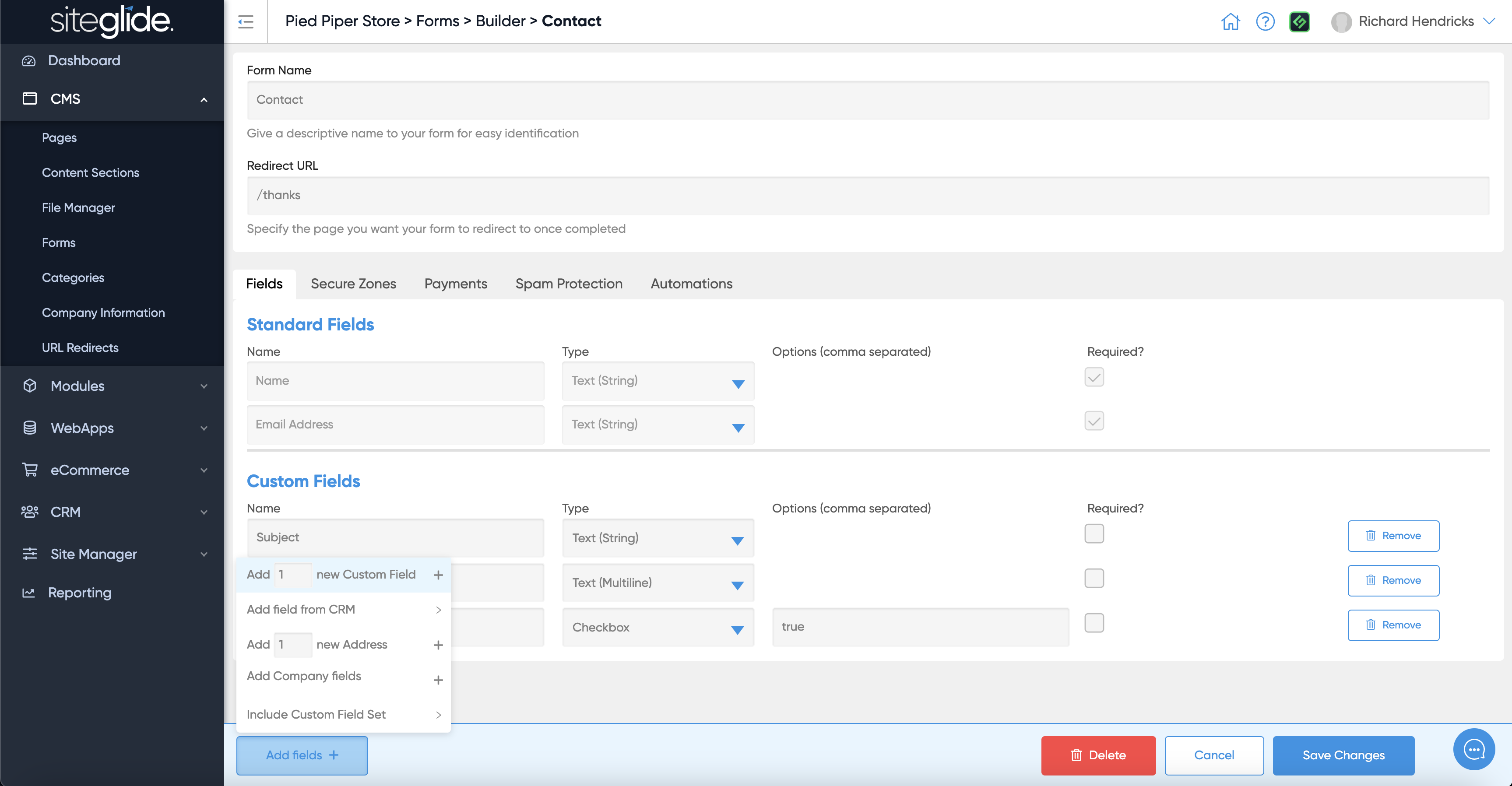
You will also see the standard fields included and and add fields button in the bottom left:
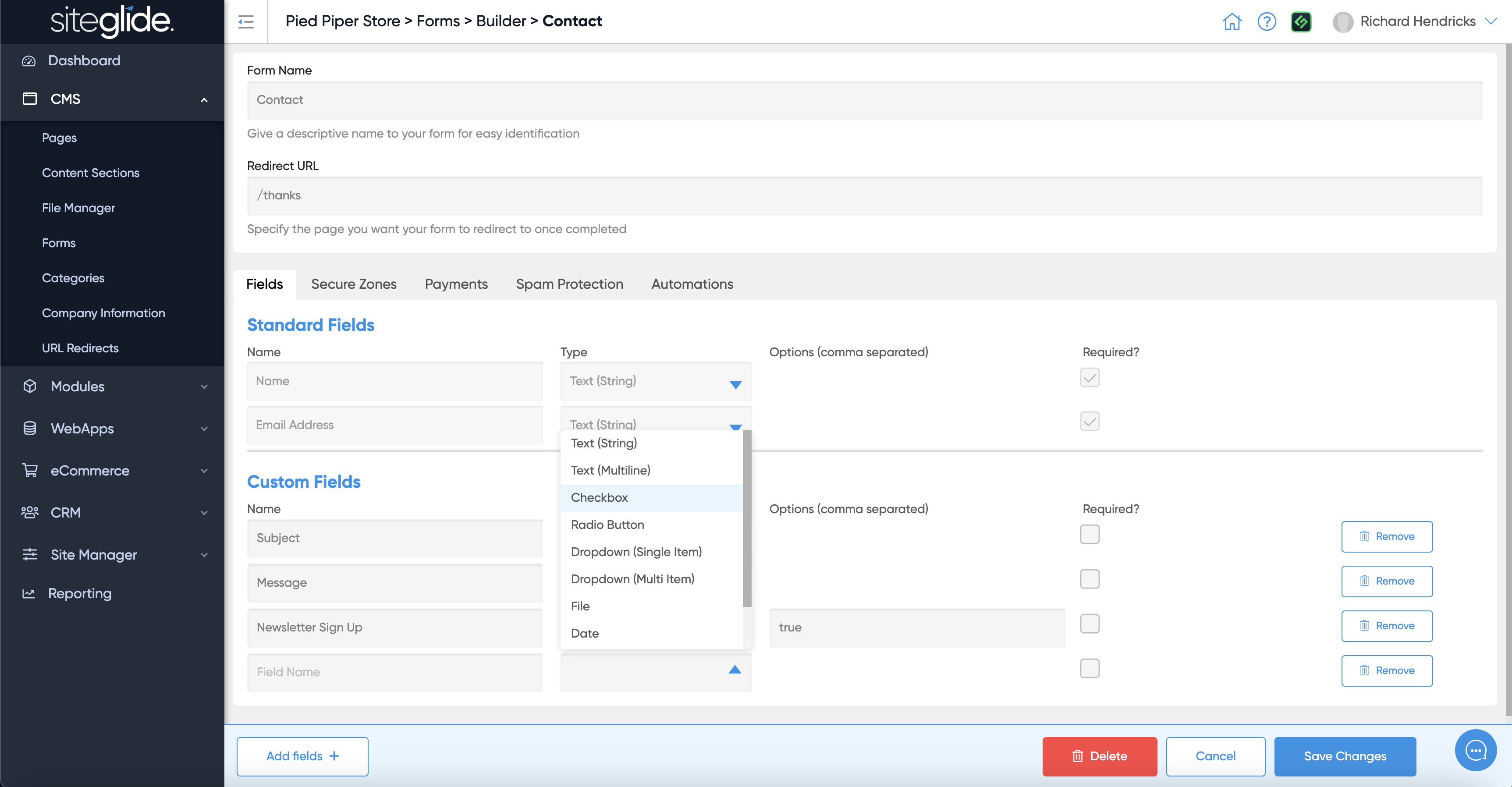
You can choose and edit the field type from the dropdown:
Step 3: Add features (optional)
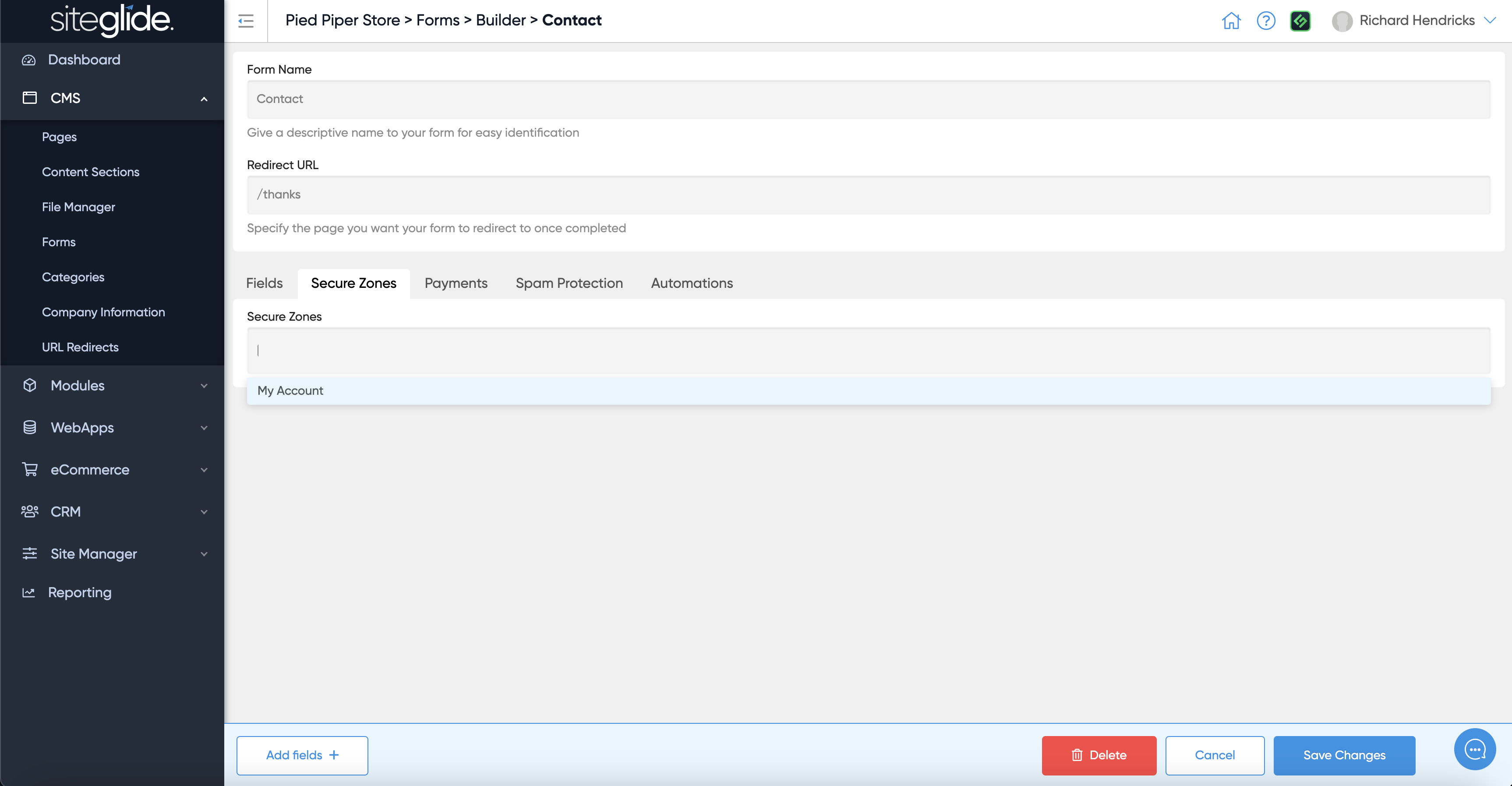
You can control whether the form adds the person who submits the form to a Secure Zone:
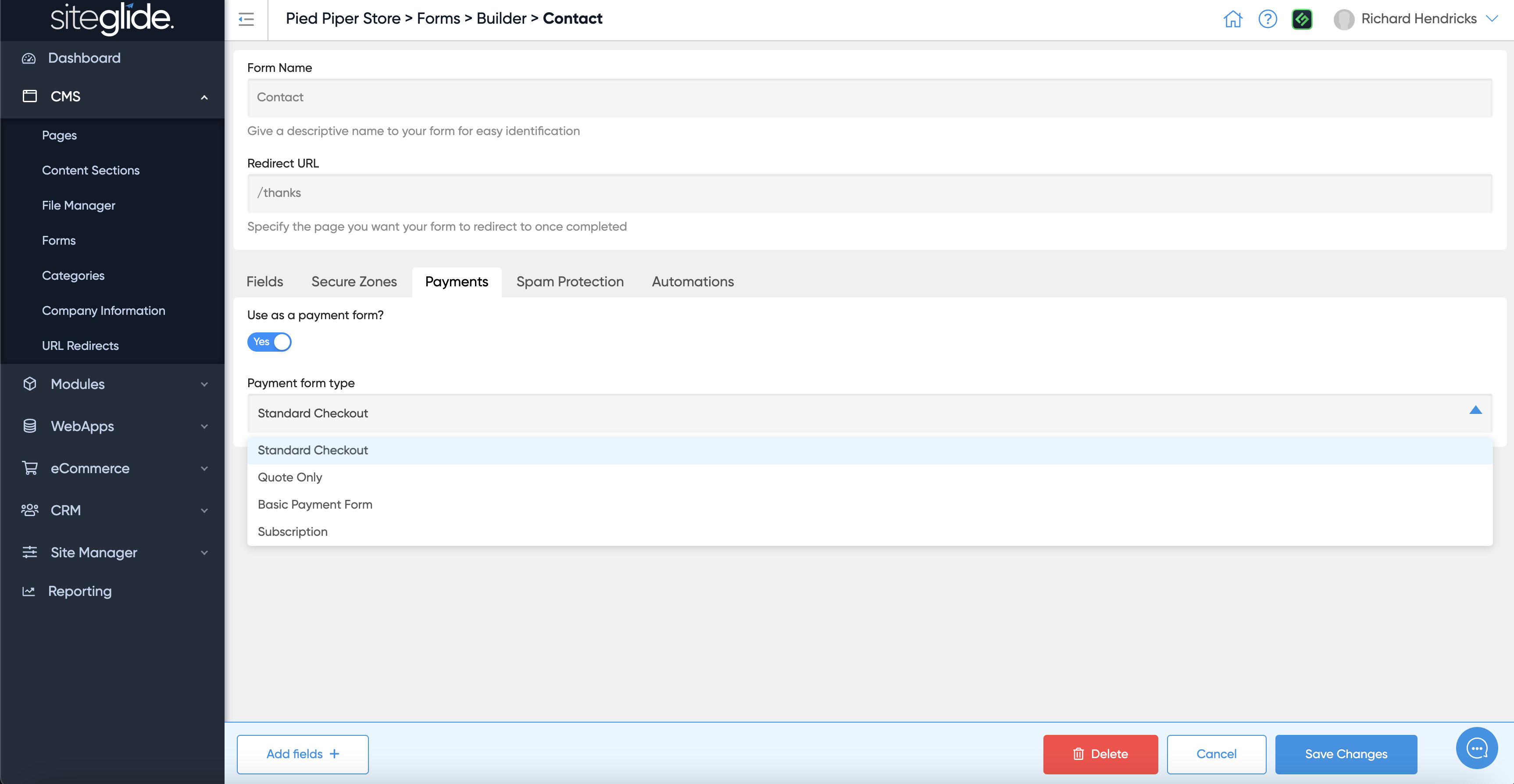
You can also take payments via a Form:
Step 4: Spam Protection
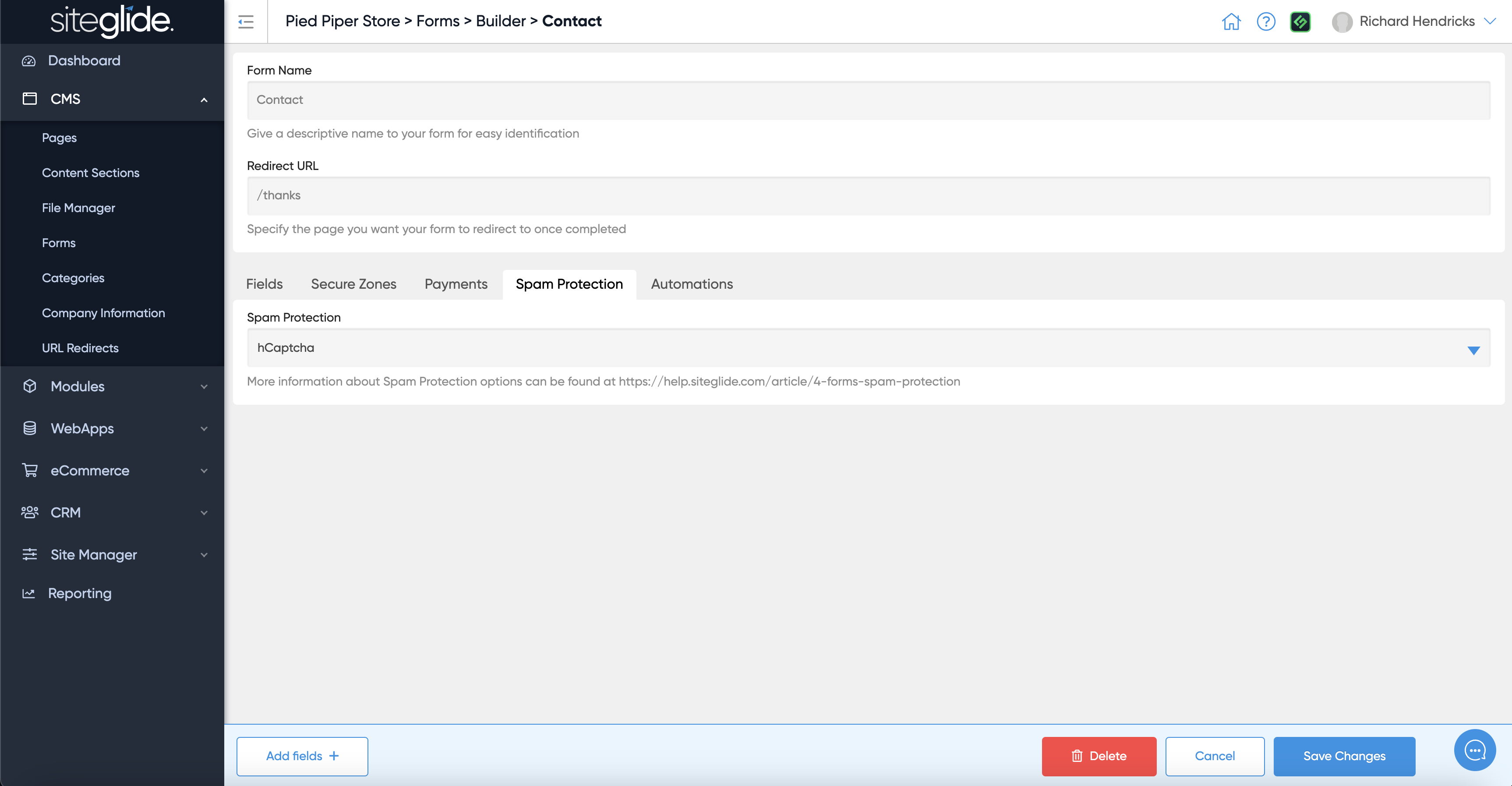
We strongly recommend using hCaptcha to protect you forms from spam as this runs server-side but you can also use reCaptcha if needed:
Step 5: Automations
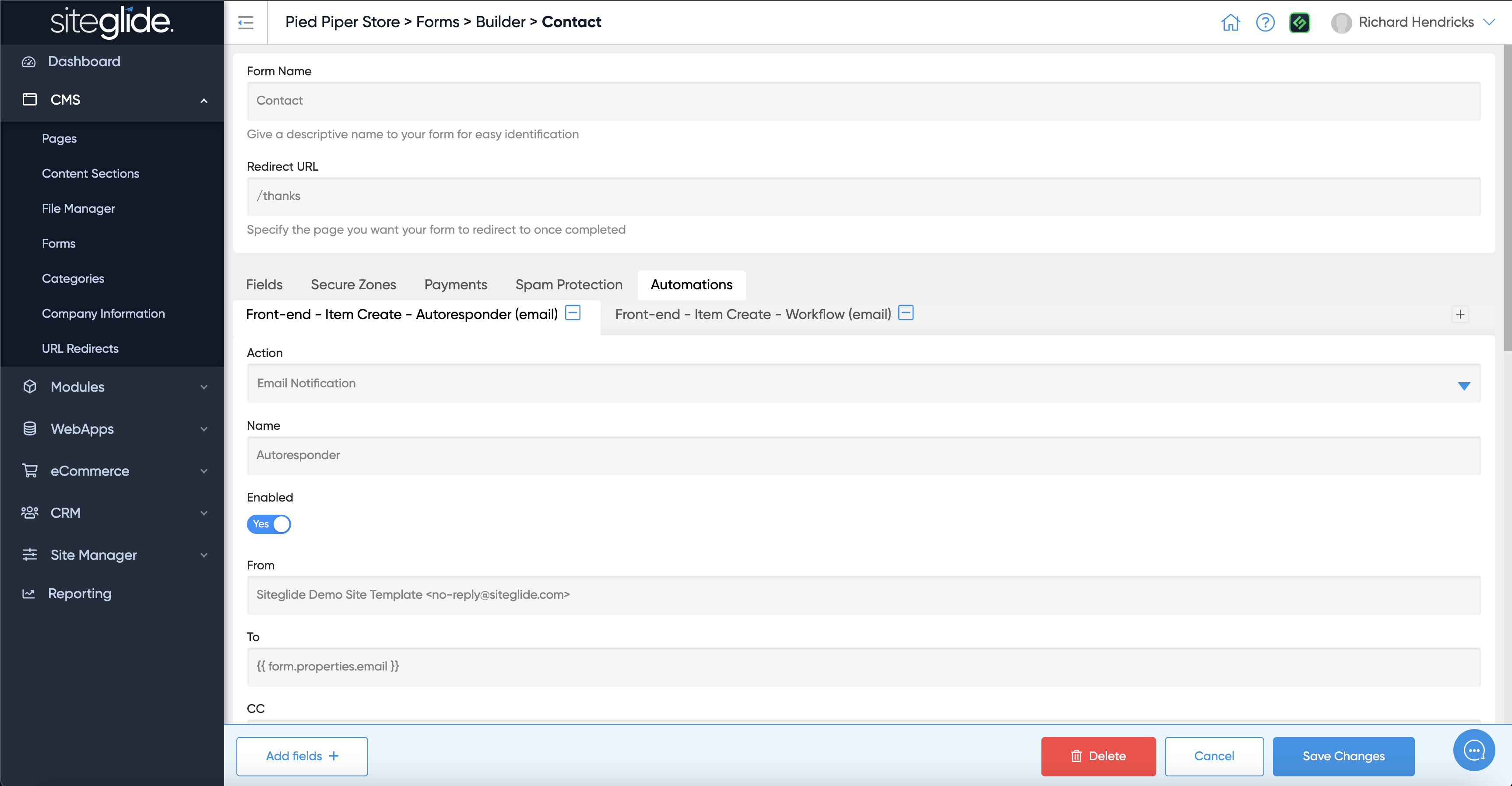
Automations are a very powerful feature that allow you to send emails such as Workflows and Autoresponders, run logic and other functions including API calls to external services:
More information on Automations:
{% content-ref url="../automations/" %} automations {% endcontent-ref %}
Step 6: Form Layouts
You have total control over how the form looks by editing the Layouts. If you use SiteBuilder these layouts can dynamically update when you edit the form fields:
{% content-ref url="../../studio-and-sitebuilder/setup-sitebuilder/layouts/about-layouts/static-and-dynamic-form-layouts.md" %} static-and-dynamic-form-layouts.md {% endcontent-ref %}